
How to use PianoBit
Everything you need to go from opening the app to playing your first song. No piano experience needed, and you don't need a piano to start. The pictures are from a tablet. On a phone, the screens look the same, only smaller. Tap any picture to see it larger.
The short videos have no sound. They were filmed on a tablet with Pro unlocked, and the key presses in them are automated. On a phone, tap the full-screen button to read the captions.
1. Your first song in one minute
- Open PianoBit. The first time, a song starts by itself so you can see how it works. Just watch.
- Tap Game at the top right. If the song is paused, tap Play at the top left.
- Tap each key as its note reaches the keyboard. Your score appears at the top left.
Too fast? Drag the speed slider at the top to the left. You can go as slow as 0.1x, and tapping the number puts it back to 1.0x.
2. Find your way around
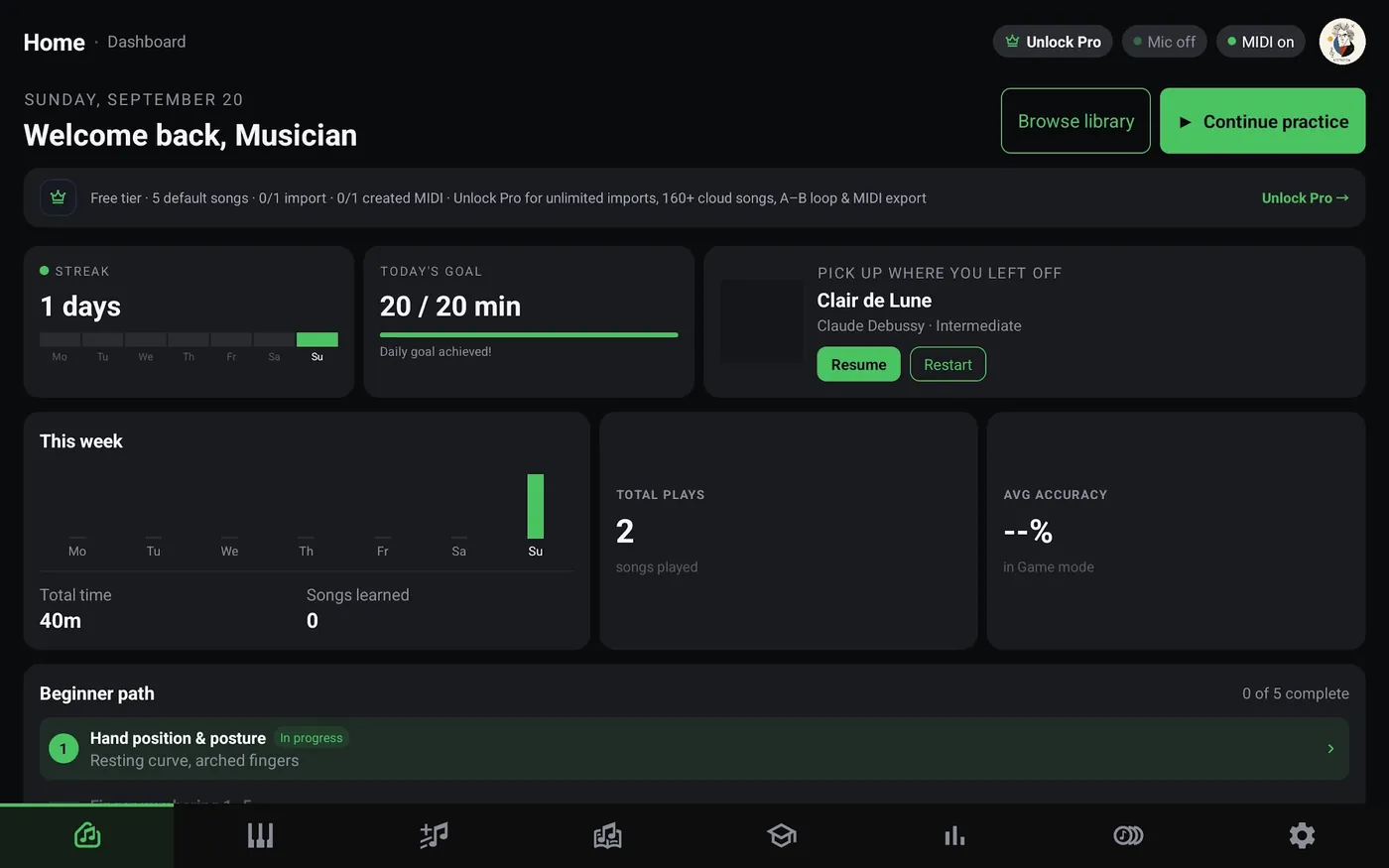
The Home screen shows your streak, your daily goal and the song you were last playing. Tap Continue practice to go back to it. The bar at the bottom takes you everywhere else.
 1
2
3
4
5
6
7
8
- 1Home: your dashboard
- 2Falling notes: opens your last song
- 3Create MIDI: record your own music
- 4Chords: every chord with its fingering
- 5Tutorial: beginner piano lessons
- 6Statistics: time played and accuracy
- 7Library: all your songs
- 8Settings: profile, sync and help
3. Choose a song
Open Library and tap a song to play it. My Practice has the five songs that come with the app, plus any you add. If you're new, start with Moonlight Sonata (Short & easy) or Gnossienne No. 1, which are both marked Beginner.
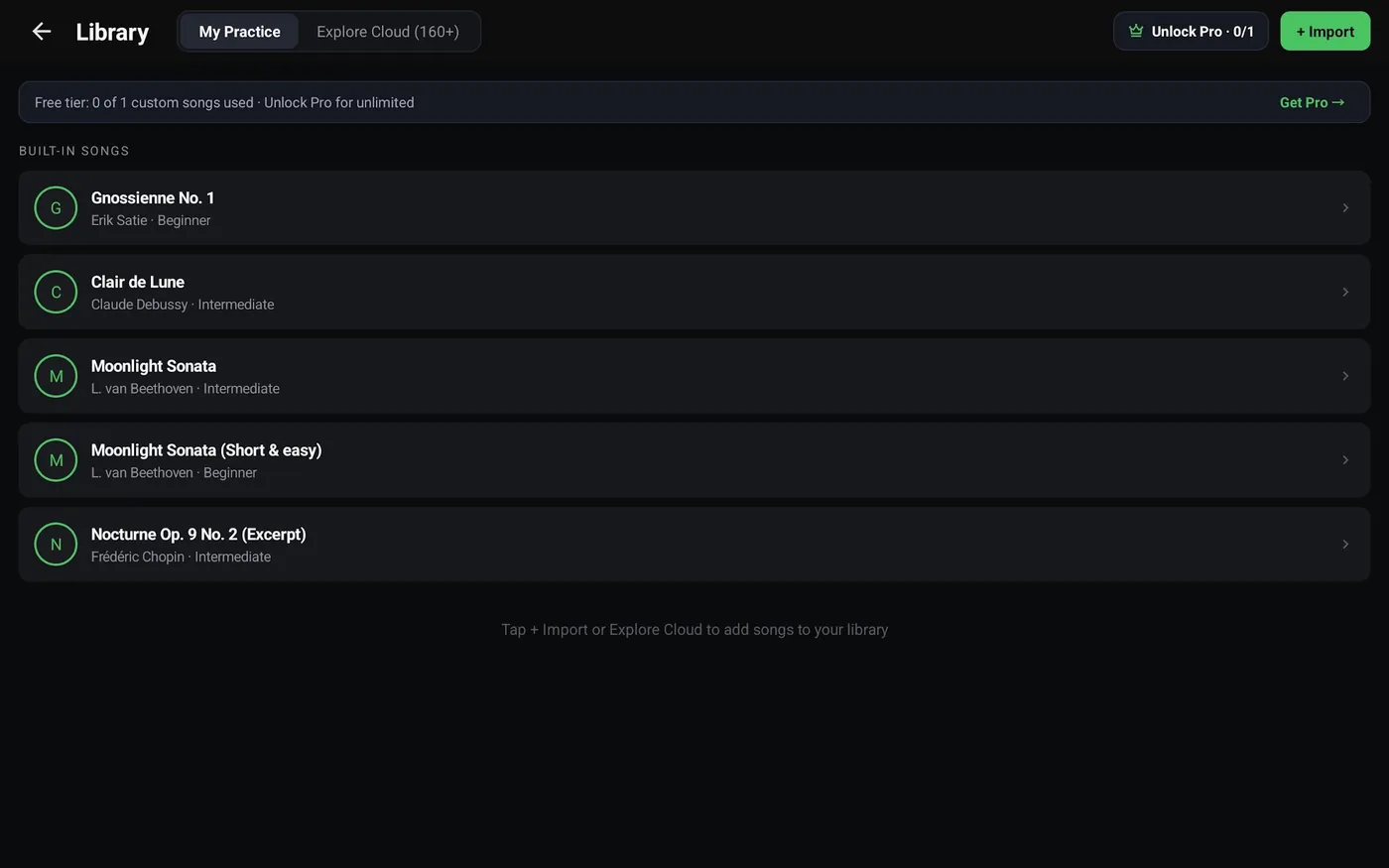
Explore Cloud has more than 160 classical and ragtime pieces. You can search them and filter by level or by songs with sheet music. The free version lets you add one song, and Pro removes the limit.
4. The player screen
This is where you practice. You don't need to learn every button today. Play, speed and the three modes are enough to begin.
 1
2
3
4
5
6
7
8
9
10
11
12
13
14
15
16
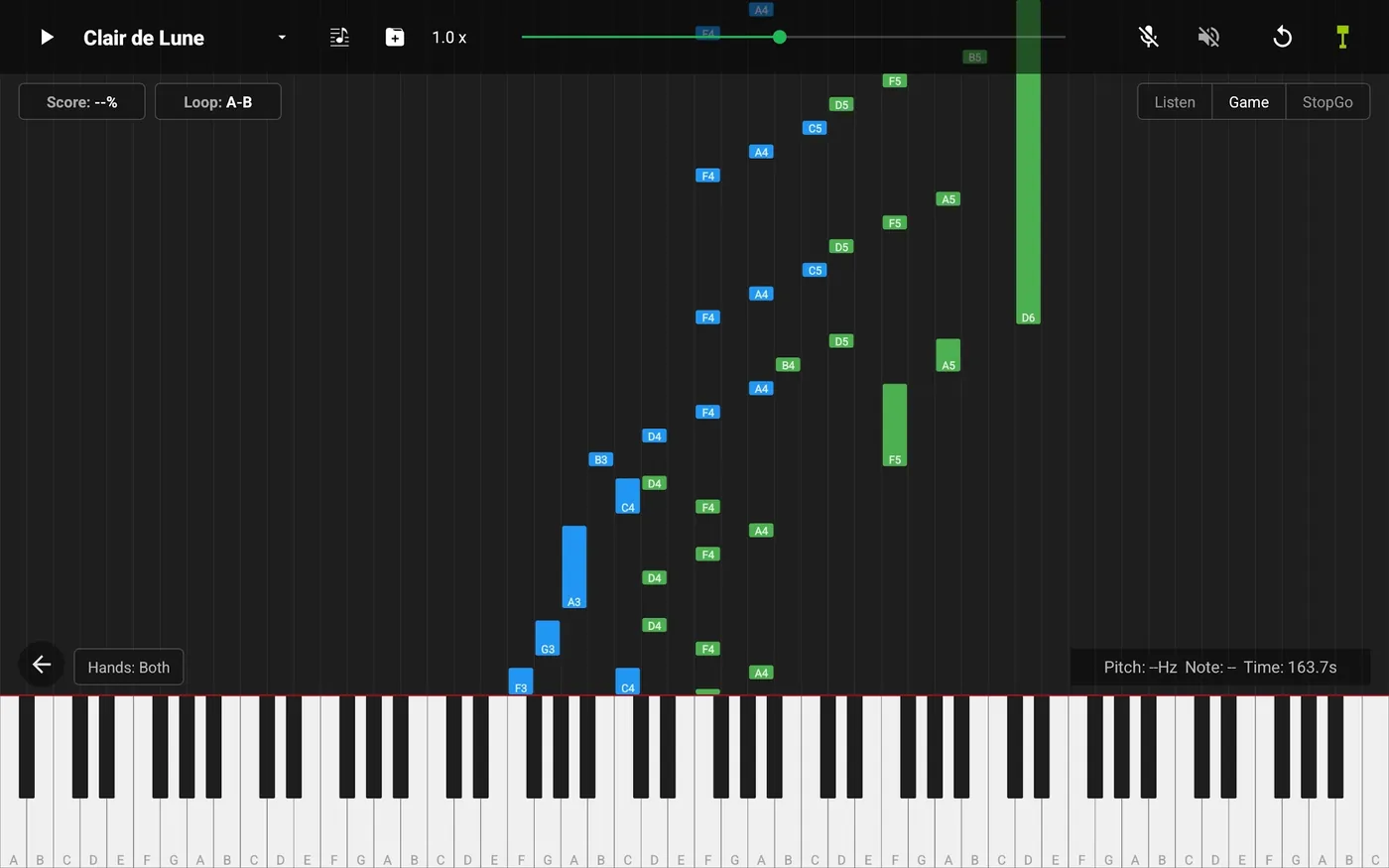
- 1Play / pause
- 2Song menu: switch songs
- 3View: falling notes or sheet music
- 4Import: open a song file
- 5Speed: 0.1x to 2.0x. Tap the number for 1.0x
- 6Microphone: listens to a real piano
- 7Sound: off, chosen hand only, or all notes
- 8Restart from the beginning
- 9MIDI: connect a digital keyboard
- 10Score: your live accuracy in Game mode
- 11Loop A-B (Pro): repeat a section
- 12Modes: Listen, Game and StopGo
- 13Back to Home
- 14Hands: both, right or left
- 15Status: the note the app hears, and the time
- 16Keyboard: touch it with several fingers
You can also drag up or down on the falling notes to move through the song.
What the colors mean
Each bar's length shows how long to hold the note, and its color shows which hand plays it.
Hands come from the tracks in the song file, so a file with only one track shows everything as one hand.
5. Listen, Game and StopGo
Listen
The song plays by itself while the notes fall and the keys light up.
Use it to hear how a song should sound.
Game
The song keeps moving and you get a score for the notes you hit in time.
Use it to test yourself.
StopGo
The song waits at each note until you play the right one.
Use it first. There's no rush, so it's the best way to learn.
6. How to learn a song
This routine works for any song. Do one short section at a time.
- Listen once at normal speed, so you know how it should sound.
- Set Hands: R and StopGo, and learn the notes of your right hand at your own pace.
- Do the same with Hands: L.
- Set Hands: Both, stay in StopGo, and put the two hands together.
- Switch to Game at about 0.5x and raise the speed a little each time your score feels comfortable.
Stuck on one hard bar? With Pro, tap Loop: A-B where the bar starts and again where it ends. It repeats until you tap the button a third time, and you can drag the A and B lines to adjust it.
7. Play on screen, a real piano or MIDI
| You have | Use | Good to know |
|---|---|---|
| Only your phone | On-screen keys | Works right away, with several fingers at once. |
| A digital piano or keyboard | MIDI | The most accurate choice. Every note and chord is read exactly. |
| An acoustic piano | Microphone | Best for single notes. Chords are harder to hear. |
Real piano with the microphone
- Put your phone on the music stand, close to the strings if you can.
- Tap the microphone button in the player and allow access. It turns green when it's listening.
- Choose a quiet room and turn the app's sound off with the Sound button, so the phone doesn't hear itself.
The microphone is only used to detect pitch while it's on. Nothing is recorded.
Digital piano or MIDI keyboard
By USB: connect the keyboard with a USB OTG cable or adapter. PianoBit connects by itself.
By Bluetooth: turn on your keyboard's Bluetooth MIDI, tap the MIDI button in the player, and tap your keyboard in the list. Tap Rescan if it isn't there yet.
8. Sheet music
Tap the View button (number 3 on the player picture) to switch between falling notes and sheet music. A cursor follows along as you play. Songs with a written score look best, and you can filter for them in Explore Cloud with Has Sheet. For other songs, PianoBit draws the notation from the notes, so it can look less tidy.
9. Add your own songs
In Library, tap + Import and choose a .mid, .midi, .xml, .musicxml or .mxl file. The free version has one slot for your own song. Read the full import guide, or download free pieces from the song library.
10. Record with Create MIDI
Create MIDI turns what you play into a song you can practice later. These are the buttons at the top right of that screen:

- Tap the red Record button, then play.
- Tap it again to stop, and tap Play to hear your recording.
- Tap Save and give it a name. It's then in your Library.
Finger mode: record without a digital piano
All 88 keys are too thin to play with your fingers on a phone. Tap the Finger button, next to Hands, to choose how many keys you see:
One keyboard with big keys. Use ◀ ▶ to change octave.
Two keyboards, one for each hand. Each has its own ◀ ▶.
All 88 keys. PianoBit switches to this when you connect a MIDI keyboard.
These are simple drawings of the three settings, not screenshots.
The app remembers your choice and your octaves for next time. Tablets show more octaves than phones.
11. Lessons and chords
New to piano? Tap Tutorial on the bottom bar. The beginner path shows you hand position, finger numbers and your first notes, with the keys and fingers marked on screen.

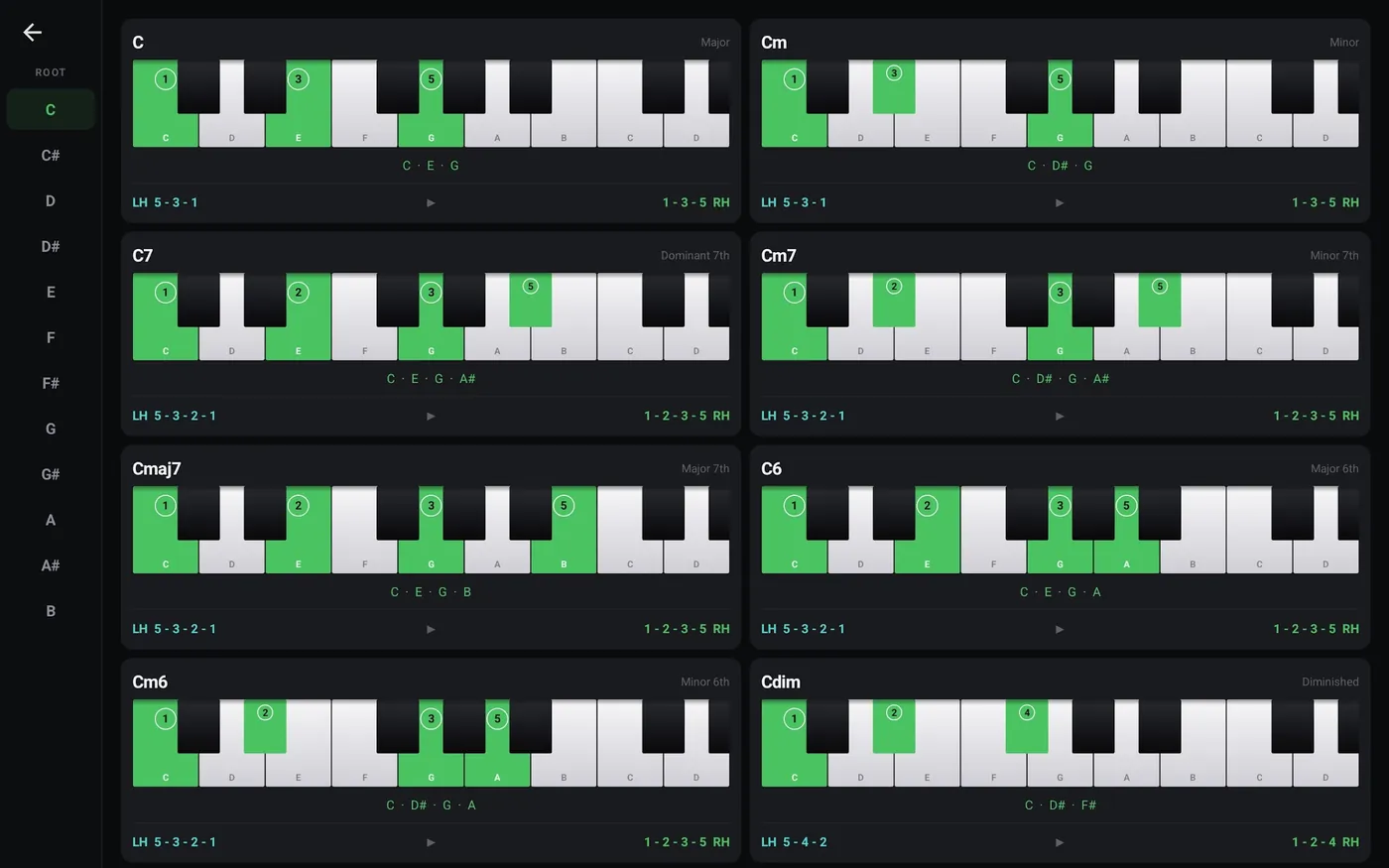
Chords shows chords for all 12 root notes, including major, minor and sevenths. Each one shows the keys and the fingers to use for your left and right hand.
12. Free and Pro
All the practice modes are free, with no ads and no subscription. Pro is one payment that you keep forever.
| Free | Pro | |
|---|---|---|
| Built-in songs, all modes, lessons, chords | Yes | Yes |
| Your own imports and cloud downloads | 1 song | Unlimited |
| Create MIDI recordings | 1 recording | Unlimited |
| Export recordings as .mid | No | Yes |
| A-B loop | No | Yes |
Changed phones? Open Settings and tap Restore while signed in to the same Google account.
You don't need an account to use PianoBit. If you want your streaks and progress on more than one device, you can create a free one in Settings → Cloud Sync.
13. If something isn't working
The microphone misses notes
Move the phone closer to the piano and turn off the app's sound. Try single notes first, because chords are much harder to detect.
I can't hear anything
Check your phone's media volume, then tap the Sound button in the player until it's on.
The keys are too small
For the player, open Settings and turn on Auto Zoom, which fits the keyboard to the notes in your song. In Create MIDI, use Finger mode.
My Bluetooth keyboard isn't in the list
Allow the Bluetooth permission when asked, make sure the keyboard's Bluetooth MIDI is on, and tap Rescan. If your phone is paired with the keyboard as a speaker, that doesn't count as MIDI.
A song file won't import
The import guide lists the usual causes.
Still stuck?
Email [email protected] and tell us your phone model and what happened. We're happy to help.
Don't have PianoBit yet? It's in closed beta on Google Play right now. Join the closed beta to get your invite.